Opens in a new tab

BE SAFE APP + BE SAFE DESKTOP

One connected program. Two ways to use it.

Start with Mobile or Desktop.
Choose a feature. See what it does and why it matters.

Choose a product, then a category and feature. Start with the Mobile app’s working day, or explore Desktop oversight.

Be Safe app

Worker and authorized-supervisor app features. Equipment and monitoring services are clearly identified.

1. Product   /   2. Category   /   3. Feature

YOU’RE EXPLORINGChoose a capability

Browse all features ↓

Working day

The worker’s mobile routine

3 features
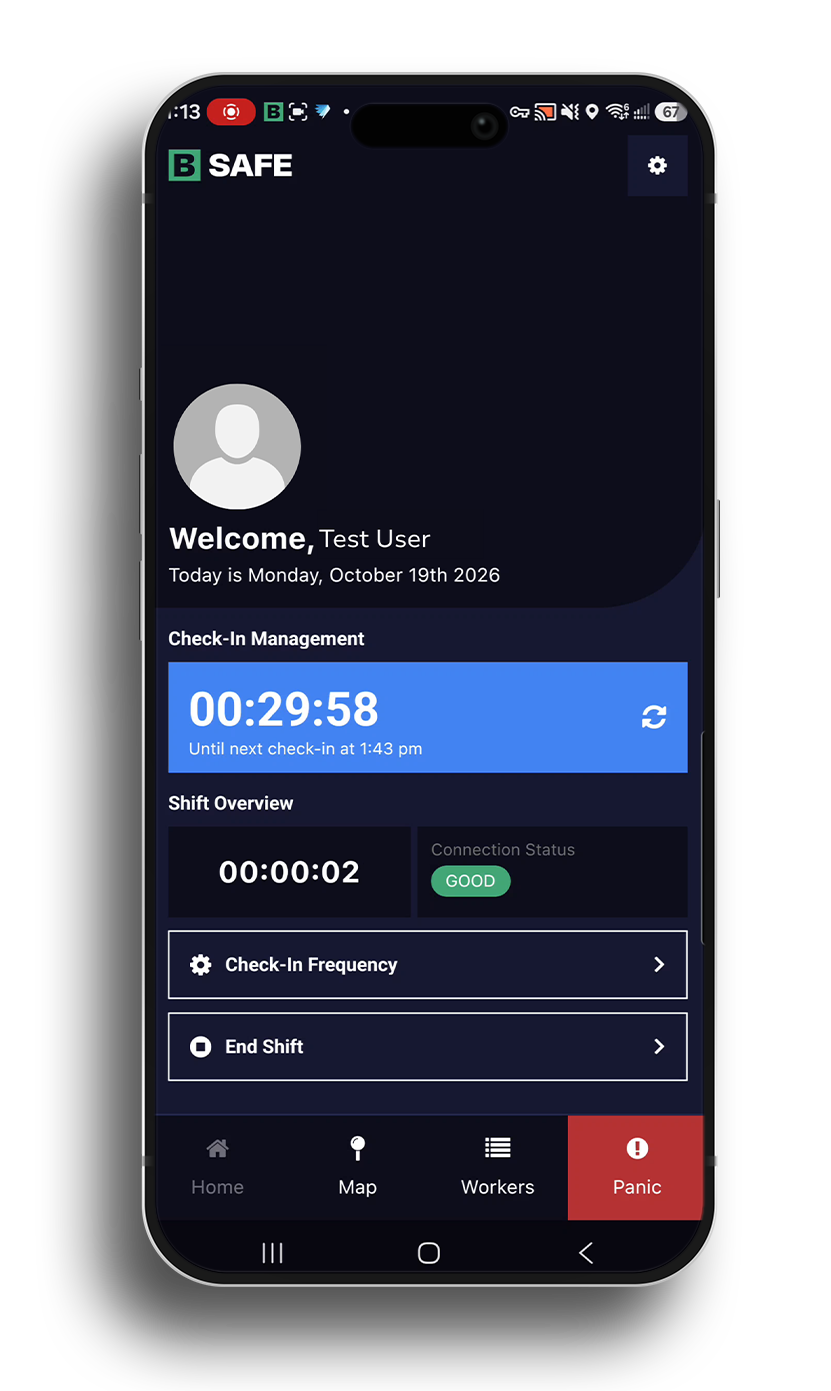
Actual Be Safe app check-in screen using a test user

Check-ins

Working alone. Not without support.

Set the check-in frequency to suit the task and its risk, then give workers a straightforward routine backed by human follow-up.

  • Adjust the check-in interval as risk changes
  • Start a shift and check in as work progresses
  • End the shift when work is done
Why it matters

Keep the routine simple, so it fits the working day.

App check-ins need a supported data connection.
Actual Be Safe app check-in screen using a test user

Actual Be Safe app check-in screen using a test user

PanicOperatorConfirm & coordinateEscalation when neededEmergency Contacts · Emergency services

Request help

A clear way to ask for help.

Panic Mode raises an urgent alarm. A dedicated Be Safe Operator follows up to confirm the situation and coordinate escalation.

  • Automated alerts and human follow-up work together
  • Contact the worker and designated Emergency Contacts
  • Escalate to emergency services when needed
Why it matters

Make the next action clear when a worker needs assistance.

If you can call 911 directly in an immediate emergency, do so.

Hands stay focused on driving

Driving check-ins

Keep the routine practical on the road.

Automatic driving check-ins reduce the need for manual check-ins while driving on supported iPhone and Android devices.

  • Enabled by default on supported devices
  • Part of the worker app routine
  • Plan for changes in location and connection
Why it matters

A check-in routine that accounts for travel between sites.

Supported devices and settings required.

Set up for work

Permissions, context and preferences

4 features

BE SAFE APP · AVAILABLE CONTROLS DEPEND ON COMPANY SETTINGS

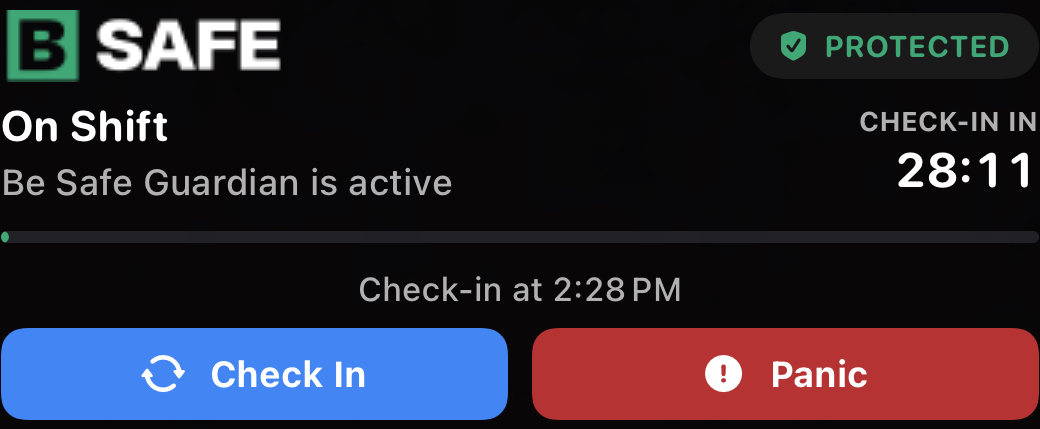
Guardian active-shift display with next check-in time and Check In/Panic actions

Guardian

Keep your next check-in close at hand.

Guardian keeps shift status, the next check-in and key actions visible, helping workers stay on top of their routine without digging through the app.

  • See that the shift is active
  • Keep the next check-in time in view
  • Access Check In and Panic controls
Why it matters

Keep the next check-in visible and key actions within reach.

Required phone permissions and alert settings must remain enabled.

Guardian active-shift display with next check-in time and Check In/Panic actions

Guardian active-shift display with next check-in time and Check In/Panic actions

New siteNew projectChoose ERP groupEmergency Contacts alignedwith the work in front of you

ERP group selector

The right contacts for the site you’re working at.

Moving between sites or projects can mean different people need to respond. Select the relevant ERP group so your emergency contacts follow the assignment.

  • Choose the group for the current site or project
  • Keep emergency-contact routing aligned with the work
  • Change groups in the app when enabled by your company
Why it matters

Keep the right emergency contacts with each assignment.

Group selection is enabled by your organization. Feature illustration shown.

JourneyRoute & work contextHazardsWhat others should knowChangesKeep the context current

Field notes

Share details someone may need to find you.

Contact Notes let workers record practical details such as travel plans, work context and relevant hazards.

  • Add journey or work-location context
  • Record relevant changes and instructions
  • Save the notes in the app
Why it matters

Give people following up something more useful than a name alone.

Notes complement your hazard assessment and emergency plan.

EnglishFrançaisEspañolA familiar language for the daily routine

App language

Let workers choose a familiar interface.

The Android app offers an in-app language selector with English, French and Spanish.

  • Open Language in the app settings
  • Choose an available interface language
  • Continue using the app in the selected language
Why it matters

Reduce language friction in a routine workers use every day.

Android offers English, French and Spanish. Monitoring and support are available in English and French.

Getting help

People behind the alarm

2 features

MONITORING SERVICE · CONNECTED TO YOUR WORKER ROUTINE

WorkerOperatorResponsePeople follow through

Human follow-up

An alert is the start. People follow through.

24/7 human monitoring through our monitoring partner is included. Be Safe Operators call and message when a check-in is missed during a shift or a supported safety alarm arrives.

  • 24/7 human monitoring through our monitoring partner
  • Calls and messages to establish what is happening
  • Coordinated escalation and recorded follow-up
Why it matters

Your team has a defined human follow-up process, not just another notification.

Missed scheduled starts are separate notices, not operator-handled alarms.

Are you safe?Two-way contact

Two-way follow-up

More than one way to reach a worker.

If mobile data is weak, a Be Safe Operator can call and start a two-way SMS conversation when phone service is available, or message a linked satellite communicator.

  • SMS can help when mobile data is limited but SMS service remains
  • Linked satellite messaging supports remote-work follow-up
  • People coordinate the next steps with Emergency Contacts
Why it matters

Help people understand the situation and decide what happens next.

Communication can fall back to SMS when service is available. App actions do not automatically switch to SMS.

Connection options

Equipment for the working conditions

3 features
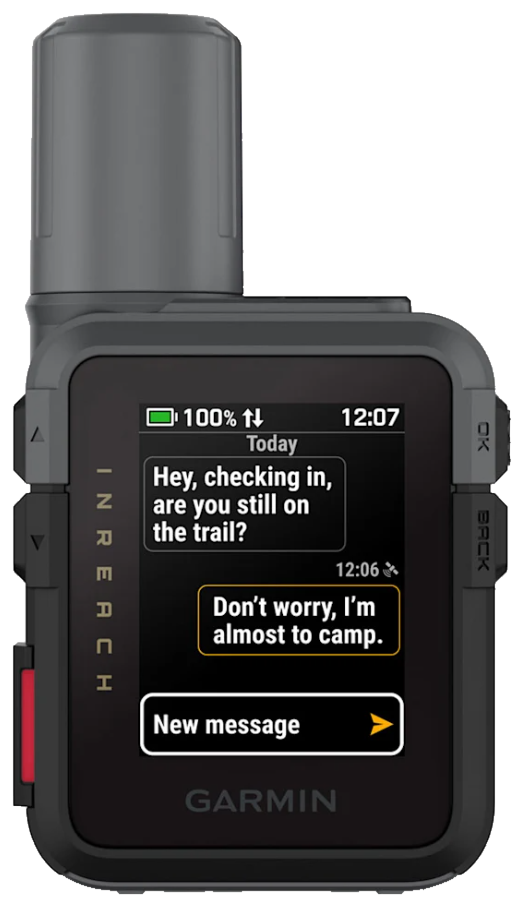
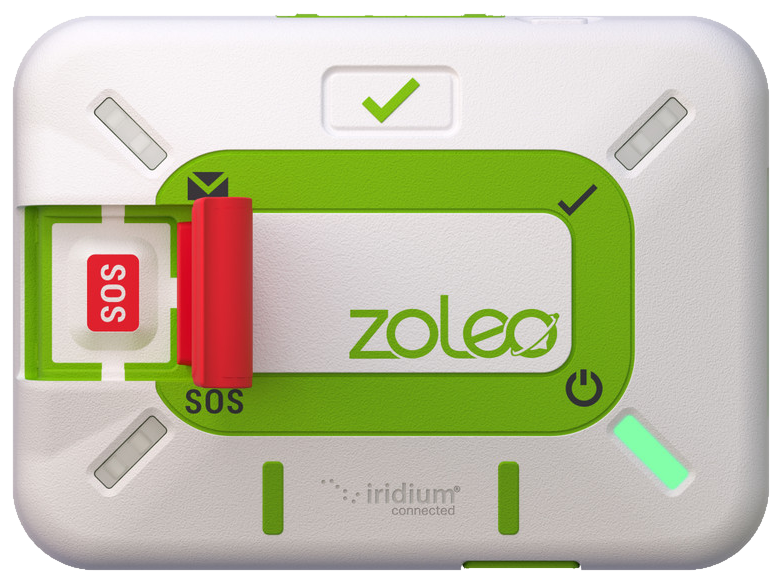
Garmin inReach Mini 3ZOLEO satellite communicator

Satellite workflows

Take the check-in routine beyond cellular coverage.

Link supported Garmin inReach or ZOLEO communicators for worker shift actions and satellite messaging within your Be Safe setup.

  • Supported start, check-in and end-shift actions
  • Linked satellite messaging
  • Location through supported integrations
Why it matters

Build a practical communication plan for remote work.

Compatible hardware, subscriptions, coverage and configuration are required. Device SOS is a separate service.

Explore connection options
Garmin inReach Mini 3ZOLEO satellite communicator

Garmin inReach Mini 3

Compatible phone + satellite serviceWorker featuresSupervisor featuresFunctionality depends on the available data connection

Satellite cellular

Use Be Safe over compatible satellite data.

Use worker and supervisor features over supported satellite cellular data. The app is designed for low-bandwidth connections, with functionality limited by the data connection available.

  • Worker and supervisor app functions
  • Compatible phone and satellite cellular service
  • Performance depends on the available data connection
Why it matters

Consider compatible phone-based options as part of your coverage plan.

Communication can fall back to SMS where supported. The suite of app actions does not fall back to SMS.

Explore connection options
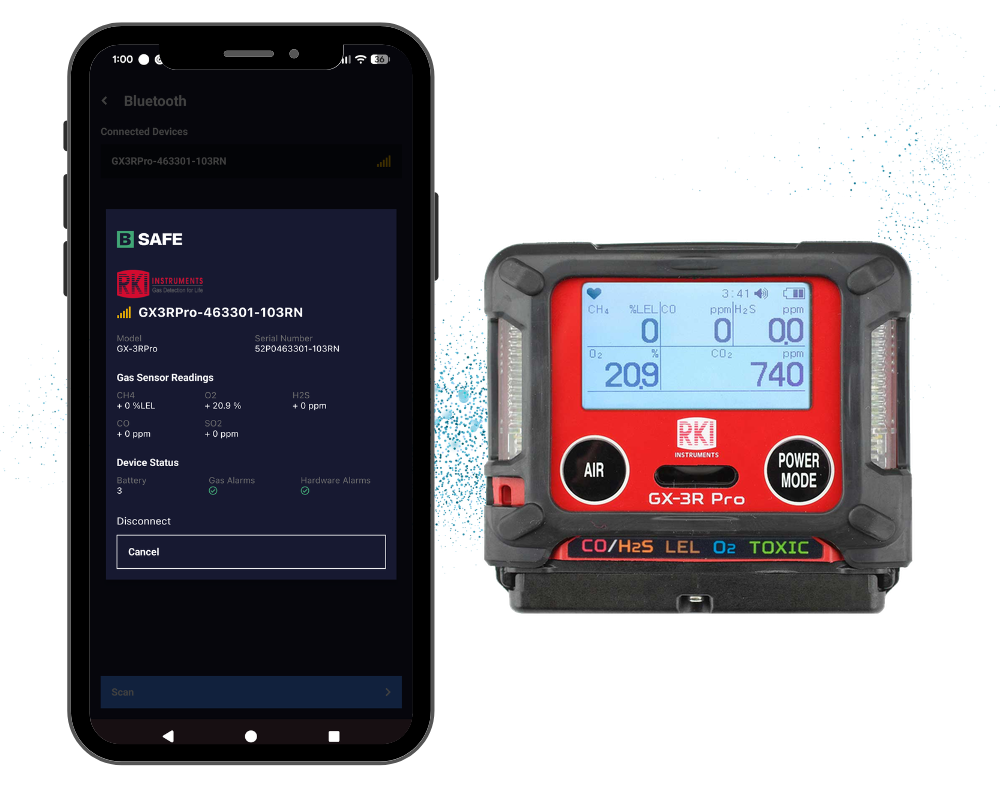
Approved composition of the Be Safe app gas readings beside an RKI GX-3R Pro detector

Bluetooth gas detection

Connect gas detection with human follow-up.

Connect a compatible GX-3R Pro detector to the Be Safe app over Bluetooth, bringing supported gas-device alerts into your monitored work-alone program.

  • Connect the supported detector through the app
  • See supported gas readings on the phone
  • Bring supported device alarms into human follow-up
Why it matters

Bring supported equipment alerts into your response procedure.

Compatible detector, configured Bluetooth and connectivity required. Man-down is not fall detection.

Explore gas detection
Approved composition of the Be Safe app gas readings beside an RKI GX-3R Pro detector

Approved composition of the Be Safe app gas readings beside an RKI GX-3R Pro detector

Workers & visibility

People, location and shift context

3 features

BE SAFE APP · SUPERVISOR PERMISSIONS REQUIRED

Your team, in viewStatus + shift contextFind the worker who needs attention

Workers & shifts

Find the worker. Understand the shift.

Authorized supervisors can review their workers in the mobile app, switch between online and offline lists and open a worker’s current shift.

  • Review workers and their available status
  • See the shift start, duration and latest update
  • Open the worker details needed for follow-up
Why it matters

Keep useful team context accessible while supervisors are in the field.

Supervisor functions depend on the assigned role.

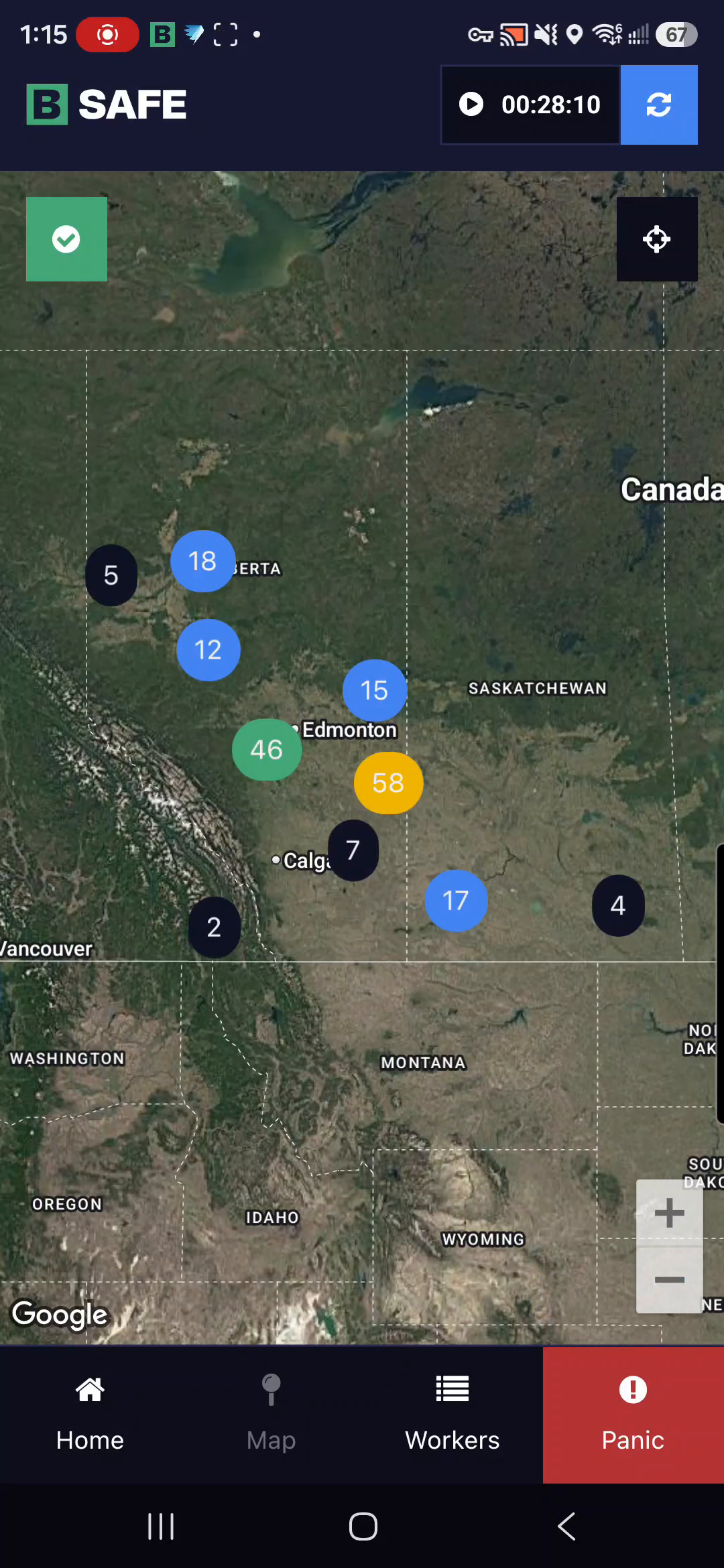
Be Safe Android supervisor map showing a regional overview of grouped workers

Mobile map

See available location in the field.

The mobile map gives authorized supervisors a way to view workers and narrow the view to people on shift, without returning to a desk.

  • See the available team map
  • Filter to workers who are on shift
  • Use available location as context for follow-up
Why it matters

Help supervisors orient themselves when a worker needs attention.

Locations can be stale when updates are unavailable. Android screen shown; not a live map.

Be Safe Android supervisor map showing a regional overview of grouped workers

Be Safe Android supervisor map showing a regional overview of grouped workers

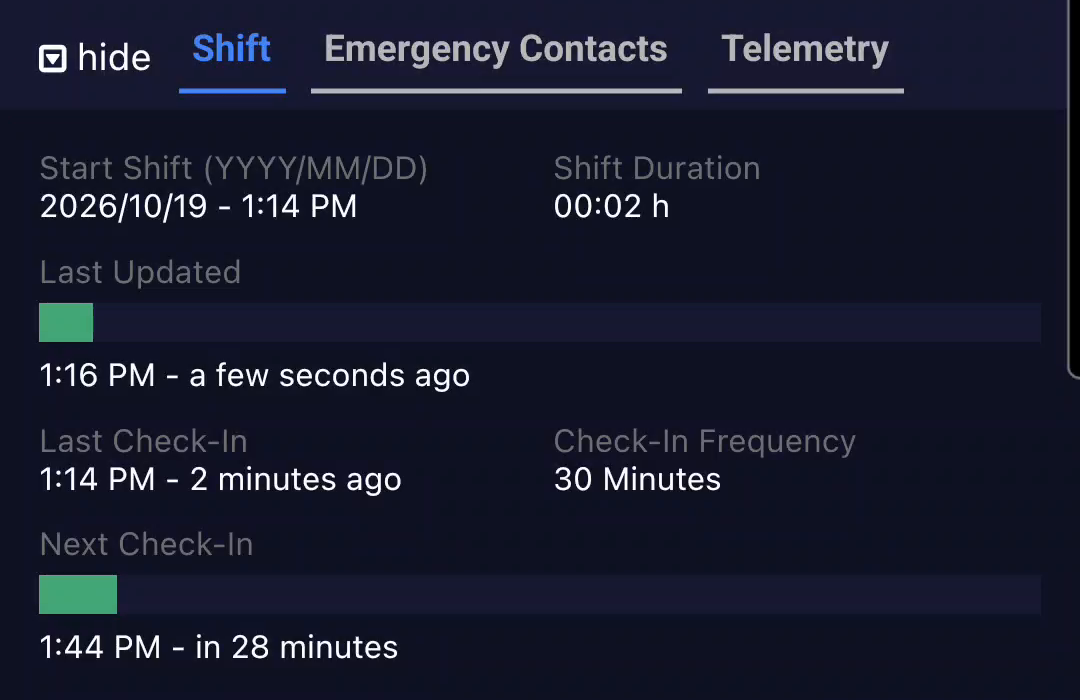
Be Safe Android worker Shift tab showing shift duration, last update and check-in timing

Worker details

Bring the follow-up context together.

Open a worker’s details to review the recorded shift and available device information, and find the relevant Emergency Contact information.

  • Review last check-in, next check-in and interval
  • Check available battery, connection and location-update information
  • Review Emergency Contacts and Contact Notes
Why it matters

Give supervisors useful context before they make the next call.

Details depend on role, device and connection. Cropped Android shift view; not a live worker record.

Be Safe Android worker Shift tab showing shift duration, last update and check-in timing

Be Safe Android worker Shift tab showing shift duration, last update and check-in timing

Plan & organize

People, response plans and schedules

5 features
Your teamWorkersSupervisors

Team setup

Put people into the right working arrangements.

Manage worker information, ERP groups, check-in settings and team roles together in Be Safe Desktop.

  • Maintain worker and supervisor profiles
  • Connect people to the right emergency contacts
  • Set check-in intervals and relevant worker details
Why it matters

Align the people, settings and response contacts before work starts.

Remote workersSupervisorsERP groupPrimary contactSecondary contactConfigured alert settings · clear contact priorities

Response planning

Bring the right people into each ERP group.

Connect remote workers and supervisors in an Emergency Response Plan (ERP) group, with clear primary and secondary Emergency Contacts and configurable real-time alerts.

  • Organize remote workers and supervisors together
  • Set Emergency Contacts and their priority
  • Configure real-time alert notifications
Why it matters

Make it clear who belongs to the group and who should respond.

Keep your organization’s emergency contacts and response arrangements current.

Shift scheduling

Plan the work without rebuilding the week.

Manage one-time, recurring, rotating and overnight shifts in Be Safe Desktop. Review schedules by worker or ERP Group.

  • Calendar and list views with time zones
  • CSV upload for multiple workers
  • Review conflicts and proposed changes
Why it matters

Keep complex working patterns organized in one place.

Vacation handling

Keep planned time off out of monitoring exceptions.

Date-range vacations exclude affected working periods from scheduled monitoring checks without deleting the underlying schedules.

  • Enter the vacation date range
  • Preview affected shifts
  • Show exclusions in the calendar
Why it matters

Keep routine schedules intact while reducing avoidable monitoring exceptions.

ReminderMonitoring dueContact noticeNotice the exception

Start reminders

Notice when scheduled monitoring was not activated.

Pre-start reminders help workers activate monitoring. Configured scheduled-start notices help your contacts follow up when scheduled monitoring was not activated.

  • Schedule expected shifts
  • Use pre-start reminders
  • Notify configured Emergency Contacts when monitoring was not activated
Why it matters

Bring a gap in scheduled monitoring to the right person’s attention.

Scheduled-start notices are not operator-handled alarms. They are distinct from a missed check-in during active monitoring.

See & coordinate

Available context and team communication

2 features

BE SAFE DESKTOP · ROLE-BASED ACCESS

Available location + shift context

Location & status

See the context behind an alert.

Authorized supervisors can review active shifts, alarms and available worker information, including location, to help coordinate a response.

  • Filter the map by company or ERP Group where permitted
  • Review alarms and available location
  • See available device battery and connection-to-power information
Why it matters

Bring relevant worker information into the follow-up conversation.

Location can update in real time when supported; otherwise the map may show the last available location. Permissions and setup apply.

One messageThe right groupSelected recipients

Team notifications

Get a message to the right group.

Send mass notifications to selected users, ERP Groups or your organization from Be Safe Desktop.

  • Choose individual users
  • Target an ERP Group
  • Select the organization when appropriate
Why it matters

Reach the relevant team without rebuilding the recipient list each time.

Available permissions and configuration apply. Delivery is not guaranteed.

Review activity

Monitoring records, adoption and reports

4 features
Scheduled vs recorded monitoringScheduled startOn timeLate activationNo activationNo recorded startScheduledRecorded

Shift Reports

Find the shifts that need a closer look.

Compare scheduled working periods with recorded monitoring. See on-time activation, late activation and periods when scheduled monitoring was not activated, with vacation exclusions.

  • Scheduled versus recorded monitoring
  • Per-worker totals
  • On-demand and scheduled PDF delivery
Why it matters

Focus follow-up on exceptions that matter.

Based on recorded app activity, not proof of physical presence or a payroll record. Reports use currently saved schedules, vacations and activity; later schedule changes can affect historical results.

From provisioned to participatingMonitoring activatedLatest recorded startNever activatedTarget onboarding & follow-upSee the gap. Help the right people get started.

Adoption Report

Know whether your rollout is reaching the people who need it.

The Adoption Report shows currently provisioned users’ latest recorded monitoring-session start and who has never activated one. Safety leaders can target onboarding and follow-up where people need help getting started.

  • Spot currently provisioned users who have never activated monitoring
  • Review the latest recorded monitoring-session start
  • Focus onboarding and follow-up where participation needs attention
Why it matters

Focus a rollout conversation on the people who need follow-up.

Recorded monitoring-session starts, not general app logins, current monitoring status or proof of compliance.

Shift startCheck-insShift endA chronological record

Shift history

Look back with a clearer record.

Detailed shift reports, the map archive and recorded response activity help authorized supervisors review what happened.

  • Shift and ERP summaries
  • Daily activity and chronological details
  • Map archive and recorded response activity
Why it matters

Support a useful review rather than relying only on memory.

Fields, permissions and retention depend on setup. Records support review; they do not prove compliance.

Shift ReportsSelected scopeChosen recipients

Report delivery

Keep Shift Reports reaching the right people.

Schedule recurring Shift Reports for a selected worker scope and chosen recipients. Keep reviews consistent without rebuilding each report manually.

  • Choose the worker scope for your Shift Reports
  • Select recipients and recurring delivery
  • Use on-demand reports when a closer review is needed
Why it matters

Spend less time gathering records and more time acting on them.

Scheduled delivery applies to Shift Reports, not the Adoption Report. Recipients are selected; delivery does not follow a management hierarchy automatically.

Manage & support

Your organization and everyday help

4 features
OrganizationTeamReady to start

Organization setup

Get your organization off to a clear start.

Register your organization online or get help with a managed setup. Dedicated support helps your team get started with the right working arrangements.

  • Self-service registration or assisted organization setup
  • Bring company details and initial users together
  • Get onboarding support for your team
Why it matters

Reduce uncertainty as a new team gets started.

Include worker training and emergency planning in your rollout.

Register your organization
CompanyBilling group ABilling group B

Account administration

Keep account details from becoming a distraction.

Organize users into billing groups to separate invoicing across companies or business units, while keeping company and payment details current.

  • Group users for the relevant invoice
  • Maintain company billing and payment details
  • Choose supported payment options at signup
Why it matters

Keep routine administration organized alongside your service.

Billing groups are distinct from emergency-response groups.

?

Help & support

Get guidance where the work happens.

The Be Safe Desktop support widget and knowledge base give users access to guides and support within the desktop experience.

  • Find guides through the help widget
  • Access support in Be Safe Desktop
  • Browse help.be-safe.ca
Why it matters

Give supervisors a practical place to look when a question interrupts their work.

Support requests and help articles are not emergency alarm channels. Use the established emergency procedure when help is urgent.

Open the Be Safe Knowledge Base
EnglishFrançais

English & French

Support teams in the language they use.

Be Safe provides service in English and French, helping teams discuss their work-alone program and follow-up needs.

  • English and French service
  • Discuss onboarding requirements
  • Confirm language needs for your setup
Why it matters

Make it easier to align the people involved in the program.

Confirm the specific interface, documentation and service arrangements you need. This does not assert that every page or integration is bilingual.

01 / 30 Explore at your own pace

Request Free Trial

App screenshots and feature illustrations. Select View image for a closer look.

Browse all Mobile and Desktop features Find a specific capability or read the full overview

Mobile app + connected services

Working day

  • Check-ins

    Keep the routine simple, so it fits the working day.

  • Request help

    Make the next action clear when a worker needs assistance.

  • Driving check-ins

    A check-in routine that accounts for travel between sites.

Mobile app + connected services

Set up for work

  • Guardian

    Keep the next check-in visible and key actions within reach.

  • ERP group selector

    Keep the right emergency contacts with each assignment.

  • Field notes

    Give people following up something more useful than a name alone.

  • App language

    Reduce language friction in a routine workers use every day.

Mobile app + connected services

Getting help

  • Human follow-up

    Your team has a defined human follow-up process, not just another notification.

  • Two-way follow-up

    Help people understand the situation and decide what happens next.

Mobile app + connected services

Connection options

Mobile app + connected services

Workers & visibility

  • Workers & shifts

    Keep useful team context accessible while supervisors are in the field.

  • Mobile map

    Help supervisors orient themselves when a worker needs attention.

  • Worker details

    Give supervisors useful context before they make the next call.

Be Safe Desktop

Plan & organize

  • Team setup

    Align the people, settings and response contacts before work starts.

  • Response planning

    Make it clear who belongs to the group and who should respond.

  • Shift scheduling

    Keep complex working patterns organized in one place.

  • Vacation handling

    Keep routine schedules intact while reducing avoidable monitoring exceptions.

  • Start reminders

    Bring a gap in scheduled monitoring to the right person’s attention.

Be Safe Desktop

See & coordinate

Be Safe Desktop

Review activity

  • Shift Reports

    Focus follow-up on exceptions that matter.

  • Adoption Report

    Focus a rollout conversation on the people who need follow-up.

  • Shift history

    Support a useful review rather than relying only on memory.

  • Report delivery

    Spend less time gathering records and more time acting on them.

Be Safe Desktop

Manage & support

CONFIDENCE THROUGH CLARITY

See the process behind the promise.

Practical tools support an owned work-alone program. Explore the response process, equipment requirements and compliance guidance before deciding what fits your team.

How do the app, Be Safe Desktop and monitoring fit together?

Workers use the Be Safe app for setup, field context, shift check-ins and Panic Mode. Authorized supervisors can also review workers and shift details in the mobile app. Supervisors use Be Safe Desktop to plan work, maintain response arrangements, review activity and follow up. Be Safe Operators provide human monitoring through our monitoring partner. Supported satellite and gas-device integrations extend the available workflows, subject to equipment and setup requirements.

Be Safe supports your work-alone program. It does not replace hazard assessment, worker training, supervision or emergency planning, or guarantee communication, response outcomes or compliance.